How to record your screen privately in the browser
Set up OhRec in your browser for private screen, tab, or webcam capture with mic and preview — no account and no uploads.
If you want to capture a demo, tutorial, or meeting without sending video to the cloud, a browser-based recorder that saves locally is the fastest path. OhRec runs entirely in your tab — choose a source, check audio, and hit record.
Pick your capture source
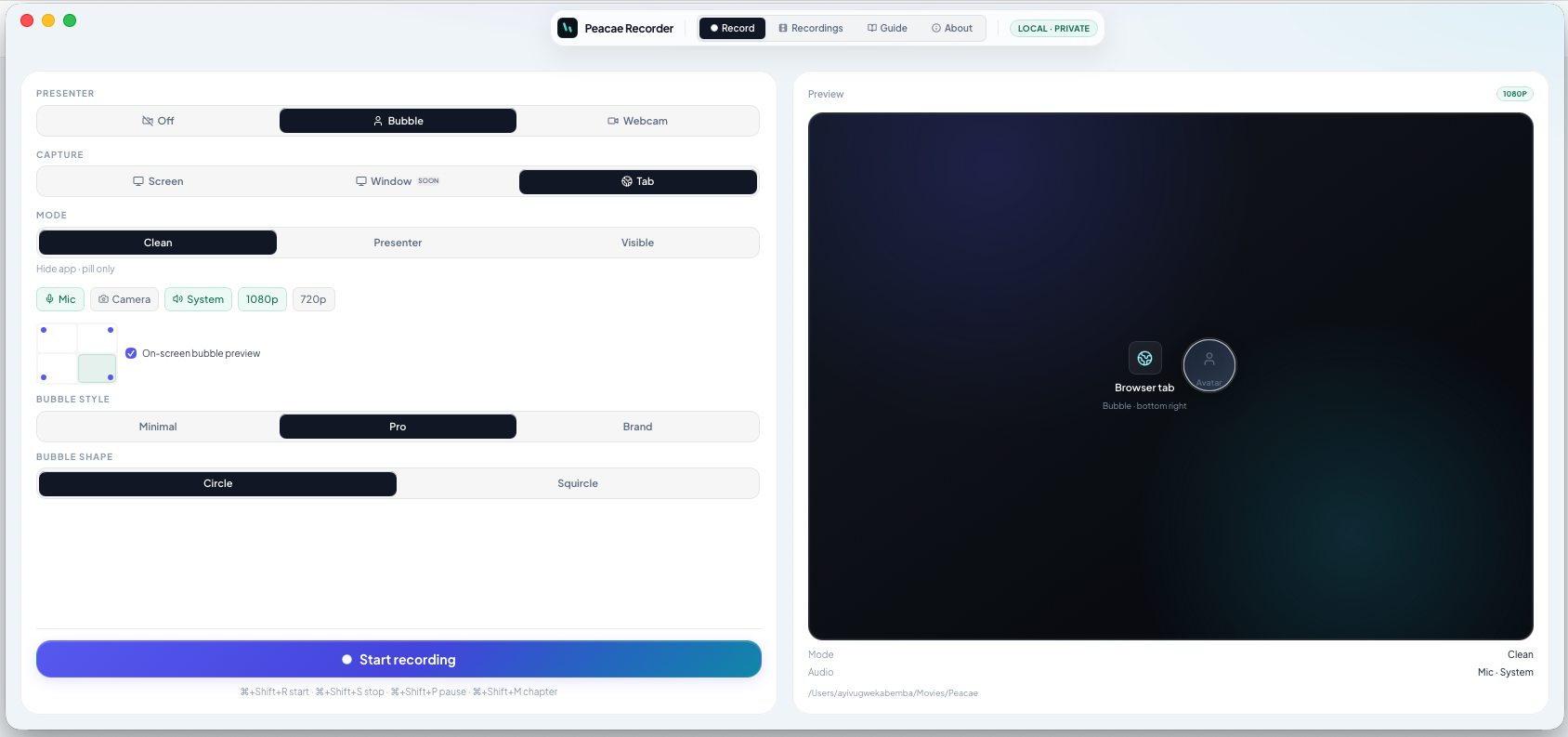
Start on the home page and choose Screen, Tab, or Webcam. Screen is best for full-desktop walkthroughs. Tab isolates a single browser window — useful when you do not want notifications in frame. Webcam records you directly when you are on camera.
Enable the audio you need
Turn on Microphone for voiceover, Camera when you want a full-frame webcam shot, Presenter bubble for a corner overlay, or System audio when the browser supports tab/window sound. The preview panel mirrors what will be recorded.
Quality and privacy by default
1080p gives the sharpest WebM export; 720p keeps files smaller. Webcam recordings use the camera's native resolution. In a dim room, turn on Low light for a mild camera lift — it is off by default and is not a replacement for a lamp. Recordings stay in this browser on this device until you download or delete them — no account, no tracking, no upload step.
- Open the recorder and choose screen, tab, or webcam.
- Enable mic, camera, bubble, or system audio as needed.
- Select 1080p or 720p. Optionally turn on Low light for dim webcam shots.
- Start recording.
- Find finished files in your on-device library or download them.
How to record voice on a Mac with OhRec
Capture your voice, what the Mac is playing, or both — locally, without an account or an upload.

The OhRec mark: a screen, and record
The OhRec mark is a landscape frame with a glowing record disc. The glow is a live lens — the camera is on.
Presenter bubble styles and shapes explained
Style your on-screen presenter bubble before you record — position, preview, theme, and shape.